# Wrangler（CLI）経由でのインストール

### 前提条件

Netacaを使用した連携を正常に行うために、以下を確認してください：

1. 最新の[Wrangler V2](https://developers.cloudflare.com/workers/wrangler/migration/v1-to-v2/update-v1-to-v2/)、[Node.js](https://nodejs.org/en)（バージョン16.13.0以上）、および[Git ](https://git-scm.com/)がマシンにインストールされていること。
2. Cloudflare DashboardにアクセスできるアクティブなCloudflareアカウント。
3. Workerのリクエスト制限などの問題を回避するための「有料」Cloudflareサブスクリプション。
4. Cloudflare Workers製品へのアクセス。

### **実装手順**

コードのプル、設定、Netacea Cloudflareプラグインのデプロイに関する詳細なGitHub手順は[こちら](https://github.com/Netacea/cloudflare-worker-template-typescript)で確認できます。

### ローカルワーカーの作成 <a href="#edit-worker" id="edit-worker"></a>

Windowsコマンドプロンプト/PowerShellを開き、Netaceaコードを保存するディレクトリに移動します。

そのディレクトリ内で以下のコマンドを実行します

{% code overflow="wrap" %}

```
wrangler generate netacea-cloudflare-worker https://github.com/netacea/cloudflare-worker-template-typescript
```

{% endcode %}

これにより、wranglerを使用して最新のNetacea GitHubコードをプルし、新しいローカルワーカーバンドルを作成（生成）します。

<figure><img src="https://2885909206-files.gitbook.io/~/files/v0/b/gitbook-x-prod.appspot.com/o/spaces%2FKs3gGgxDF9S8O56fhTGU%2Fuploads%2Fgit-blob-eb5d13d51998c5b3a6052838c34b1e07d9b3143c%2Fimage%20(71).png?alt=media" alt=""><figcaption></figcaption></figure>

上記のディレクトリにアクセスし、以下の形式のワーカーを確認することで検証できます：

<div align="left"><figure><img src="https://2885909206-files.gitbook.io/~/files/v0/b/gitbook-x-prod.appspot.com/o/spaces%2FKs3gGgxDF9S8O56fhTGU%2Fuploads%2Fgit-blob-4943f944ca9f4a61987a04f3c3f5aedc6609b48b%2Fimage%20(1)%20(1)%20(1)%20(1)%20(1)%20(1)%20(1)%20(1)%20(1)%20(1).png?alt=media" alt=""><figcaption></figcaption></figure></div>

### ワーカーの設定

srcディレクトリを開き、`NetaceaConfig.json`ファイルを以下のように編集します：

```json
{
    "apiKey": "API-KEY-PROVIDED-BY-NETACEA",
    "secretKey": "SECRET-KEY-PROVIDED-BY-NETACEA",
    "mitigationType": "PREFERRED-MITIGATION-TYPE",
    "ingestType": "KINESIS",
    "kinesis": {
      "kinesisStreamName": "NAME-PROVIDED-BY-NETACEA",
      "kinesisAccessKey": "KEY-PROVIDED-BY-NETACEA",
      "kinesisSecretKey": "KEY-PROVIDED-BY-NETACEA"
    },
    "cookieEncryptionKey": "ENCRYPTION-KEY-PROVIDED-BY-NETACEA",
    "netaceaCookieName": "_cookieName",
    "netaceaCaptchaCookieName": "_captchaCookieName",
    "enableDynamicCaptchaContentType": false,
    "timeout": 3000
  }
```

値をNetaceaから提供された詳細に置き換え、ファイルを**保存**します。

{% hint style="info" %}
`mitigationType`属性は、連携のモードを決定するために使用されます。以下の3つの値のいずれかを設定できます：

* "**INGEST**" - この連携モードは監視のみであり、緩和アクションは実行されません。POC中に推奨されます。
* "**MITIGATE**" - これは「通常」の連携モードであり、Netaceaソリューションがリクエストを監視し、積極的に緩和します。
* "**INJECT**" - このモードは、Netaceaによる緩和アクションがリクエストに追加されたHTTPヘッダーを使用した推奨のみとなるカスタムソリューションで使用されます。
  {% endhint %}

{% hint style="info" %}
CookieとCAPTCHAの名前は一意である必要があります。

**セキュリティ強化のため、この名前にNetaceaやMitigationを含めないでください。**
{% endhint %}

{% hint style="danger" %}
cookieEncryptionKey、netaceaCookieName、netaceaCaptchaCookieName変数は、Netaceaのデフォルトのcookie名と値を公開ビューから隠すことでセキュリティを強化するために使用されます。
{% endhint %}

### Wranglerの設定

ワーカーのルートディレクトリに移動し、`wrangler.toml`ファイルを編集します：

```json
name = "netacea-worker"
main = "./dist/worker.js"

account_id = "EXAMPLE_ACCOUNT_ID"
route = "EXAMPLE_ROUTE"

compatibility_date = "2023-05-04"

[observability]
enabled = true

```

値を適切な詳細に置き換え、準備ができたらファイルを**保存**します。

{% hint style="info" %}
[Account ID](https://developers.cloudflare.com/fundamentals/get-started/basic-tasks/find-account-and-zone-ids/#find-zone-and-account-ids)はCloudflare Dashboardで確認できます。

[Route ](https://developers.cloudflare.com/workers/platform/triggers/routes/)は、ワーカーを適用するパスを指します（例："[www.example.com/\*"）。これはデプロイ後に編集できます。](http://www.example.com/*"）。これはデプロイ後に編集できます。)
{% endhint %}

{% hint style="info" %}
設定を変更する際に**自動保存**オプションを有効にすると便利です。
{% endhint %}

### npmのインストール/更新

ワーカーのルートディレクトリ内で、必要なすべてのnodeモジュールがインストール/更新されていることを確認するために、以下の2つのコマンドを実行します

```powershell
npm i @netacea/cloudflare@latest
```

```
npm install
```

### ワーカーをCloudflareにデプロイ

以下のコマンドを実行します：

```
npm run deploy
```

これにより、ブラウザ経由でCloudflareにログインし、wranglerへのアクセスを許可するよう求められる場合があります。その場合は、ログインしてアクセスを許可してください。

<div align="left"><figure><img src="https://2885909206-files.gitbook.io/~/files/v0/b/gitbook-x-prod.appspot.com/o/spaces%2FKs3gGgxDF9S8O56fhTGU%2Fuploads%2Fgit-blob-0386aac934dd8f1a966969128cd868201699fd19%2Fimage%20(7)%20(7).png?alt=media" alt=""><figcaption></figcaption></figure></div>

<figure><img src="https://2885909206-files.gitbook.io/~/files/v0/b/gitbook-x-prod.appspot.com/o/spaces%2FKs3gGgxDF9S8O56fhTGU%2Fuploads%2Fgit-blob-f6c9f60eb7705f1773cd6c09056c6d3de2e62e68%2Fimage%20(2)%20(9).png?alt=media" alt=""><figcaption></figcaption></figure>

{% hint style="info" %}
上記のコマンドを使用して、同じワーカーを再デプロイして更新できます（例：設定プロパティの変更）。最後のデプロイがデフォルトでアクティブになります。
{% endhint %}

### デプロイの確認

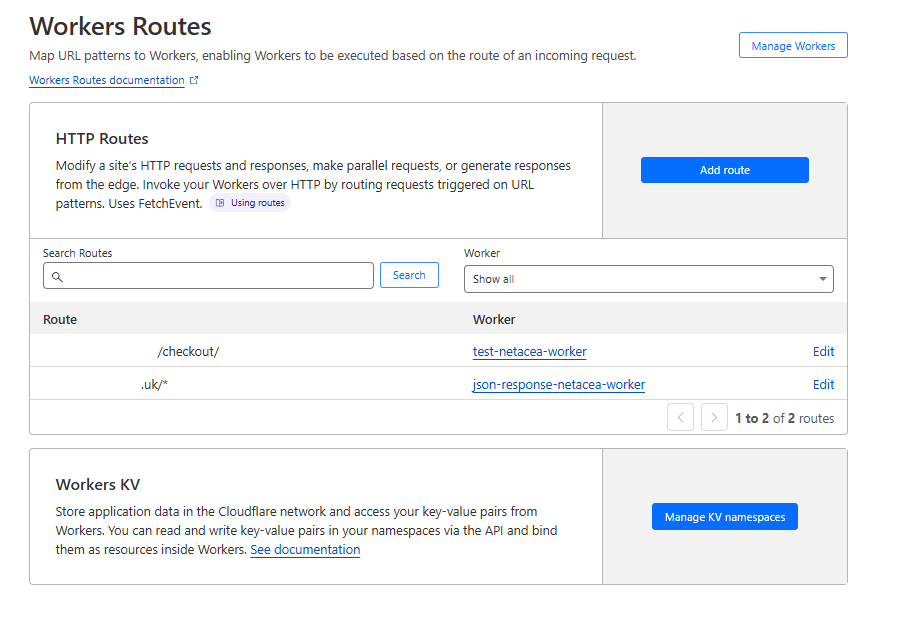
Cloudflareにログインし、ダッシュボードを開き、ワーカーを動作させたいドメインを選択し、最後にメニューから「Workers Routes」を選択します。`wrangler.toml`ファイルのルートに関連付けられた、新しくデプロイされたワーカーが表示されるはずです。

<figure><img src="https://2885909206-files.gitbook.io/~/files/v0/b/gitbook-x-prod.appspot.com/o/spaces%2FKs3gGgxDF9S8O56fhTGU%2Fuploads%2Fgit-blob-12cb6d8d73e49f99772f9729b3666f42c80f9b6c%2FScreenshot%202024-12-13%20125030.png?alt=media" alt=""><figcaption></figcaption></figure>

{% hint style="info" %}
**編集**をクリックすることで、wrangler経由でワーカーを再デプロイすることなく、ワーカー、ルート、環境などを変更できます。
{% endhint %}

各ワーカーのデプロイは、ワーカー（例：test-netacea-worker）をクリックし、「Deployment's」タブを選択することで確認できます：

<figure><img src="https://2885909206-files.gitbook.io/~/files/v0/b/gitbook-x-prod.appspot.com/o/spaces%2FKs3gGgxDF9S8O56fhTGU%2Fuploads%2Fgit-blob-33ad1be8eccc8e959a613deea8c4cfba5f42a6fa%2FScreenshot%202024-12-13%20124156%20(1).png?alt=media" alt=""><figcaption></figcaption></figure>

各ワーカーについて、さまざまなメトリクス、関連付けられたルートを確認でき、以前のデプロイにロールバックするオプションがあります。


---

# Agent Instructions: Querying This Documentation

If you need additional information that is not directly available in this page, you can query the documentation dynamically by asking a question.

Perform an HTTP GET request on the current page URL with the `ask` query parameter:

```
GET https://docs.netacea.com/jp/netacea-puraguin/cloudflare/installation-and-configuration/installation-via-wrangler-cli.md?ask=<question>
```

The question should be specific, self-contained, and written in natural language.
The response will contain a direct answer to the question and relevant excerpts and sources from the documentation.

Use this mechanism when the answer is not explicitly present in the current page, you need clarification or additional context, or you want to retrieve related documentation sections.